Box.com Mobile

Some employees may be used to printing documents in order to read them. While working from home, however, this practice cannot be supported since it creates holes for our data security. If you have a personal tablet (such as an iPad), you can install the Box Mobile App. This will allow you to bring up any document (or file) from Box on a separate screen.

You will just need to install the app from your respective app store (iOS, Android) and enter your Sterling credentials.
Home Setup Information

While our remote access capabilities make it easy to connect remotely from just about any modern PC, Laptop or Tablet that has Internet access, in order to be able to work from home efficiently and effectively (especially for a potentially prolonged period of time), we have put together some recommendations for what you can do to optimize your home-work environment:

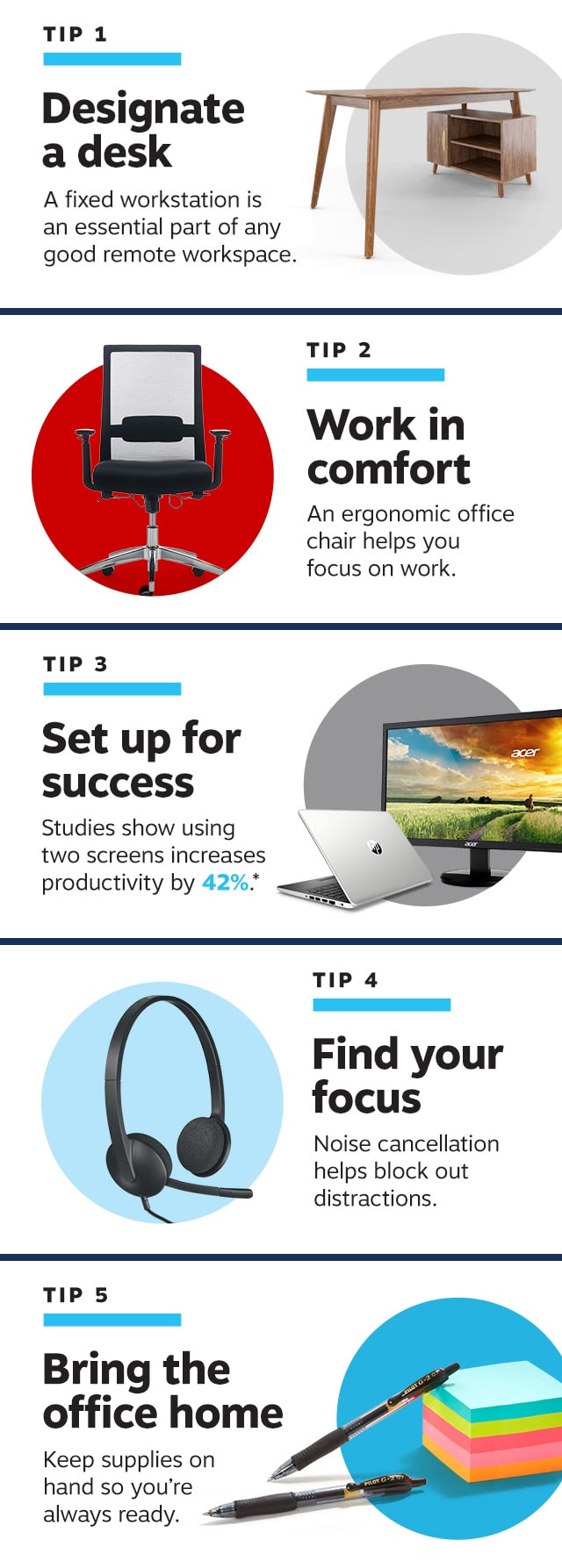
  1. A Windows 10 desktop PC or Laptop with a dual monitor setup is recommended in order to optimize efficiency. Apple MAC systems will also work with Remote Desktop. Tablets (like the iPad) can also be used in a pinch, but they are not recommended for long-term remote work. If you have an existing system but are not sure if it supports dual monitor capability, you can check with your local computer specialist or the hardware manufacturer to check if it is compatible with dual monitors, and/or what would be necessary to upgrade it to obtain that capability. If/when your PC is setup with dual monitors, you can follow the attached directions for how to configure/use both monitors when remoting in.
  2. Ensure that you have a good Internet Connection from a reputable Internet Service Provider (FIOS, Altice, Spectrum, etc.). We recommend download / upload speeds of at least 50 MB / 50 MB in order to ensure a smooth remote experience.
  3. If possible/practical, we recommend that for work purposes you connect your Desktop or Laptop directly to your home network router using a CAT 5e or CAT 6 Ethernet Network Patch cable. This will help to ensure optimal connectivity to the network, and minimize any slowness or disconnects due to poor Wi-Fi reception in your home. If you do use Wi-Fi, then please just be sure to work as close to the Wi-Fi router as you can in order to help maintain a good connection.
  4. Be sure that you follow all of the policies/protocols outlined in our Remote Access Policy, including checking to make sure that your home system is up-to-date with the latest Operating System patches, and that it has an up-to-date version of a reputable AntiVirus software program (such as Norton Device Security or ESET).
  5. Think through any potential complicating scenarios where more than one person from your household may be asked to work from home as well and may need the ability to use a computer at the same time. This may require the use of multiple home systems, and/or working out a time-sharing schedule.

I.T. Assistance Requests

As always, our I.T. team stands ready to assist you with any issues or questions you may have related to any of the items above. In order to ensure that your issues are handled as quickly and efficiently as possible, we ask that you continue to follow our established protocols for seeking assistance (this remains the same regardless of your physical location):

When possible, All I.T. related requests/inquiries should be submitted via a Help Desk Request through our online Web Help Desk ticketing system (https://helpdesk.sterlingrisk.com). The Web Help Desk system is accessible from any system connected to the Sterling main office network, including PCs in any of our fixed remote offices, as well as if you are remoted into a Sterling PC or Terminal Server from outside of the office. If your request is Urgent, then please mark it as such. In any circumstance when the Web Help Desk may not be accessible to you for some reason (such as your account being locked out, or you having issues connecting to any Sterling systems from outside of the office), then we have several other easy to use options in place for you to report your issue.

  • Alternate reporting method 1: Send an email to itsupport@sterlingrisk.com from your STERLING email address. When using this method, please be sure to include an appropriate subject related to your issue, and use the body of the email to describe your issue in detail, just as you would use the Request Detail section of an actual Help Desk request.
  • Alternate reporting method 2: Call the Help Desk voicemail at 516-719-8747 and leave a detailed message about your issue. Please be as specific as possible about the issue that you are having, and be sure to leave contact information so that we know the best way to get back in touch with you.

Microsoft Teams Screen Sharing

  • Open Microsoft Teams.
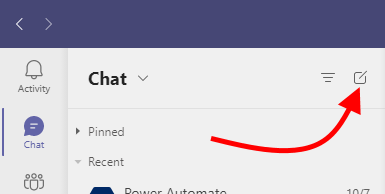
  • Choose the Chat icon in the left hand bar.
  • If you already have a chat created–under Pinned or Recent–with the person you want to share your screen with select it. Otherwise, you can use the New Chat button to create a new chat then enter the name or email address of the person.
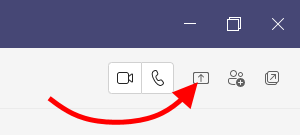
  • Choose the Screen Sharing button to share your screen.
  • Teams will give you the opportunity to choose which desktop or window you want to share. Just click it to begin sharing.
  • The other person will get a teams pop-up message asking if they want to view your screen.

OneCallNow Emergency Alerting System

Sterling utilizes an emergency notification service called OneCallNow. This service allows us to send emergency voicemail, text, and/or email messages to our employees. Any communications regarding office closures or delays, as well as any other important emergency information may be communicated using this service. You should use the One Call Now Self-Update portal to manage your emergency contact info and be sure that it is up-to-date. If you already signed up through the portal, you can enter your user name and password and “Sign-In” (there is also a “Forgot Password” link if needed). If you have not previously signed up, you can click the “Sign Up” link to create a new account.

Remote Desktop Access

Remote access from home consists of two main pieces: DUO Two factor Authentication and the Remote Desktop Client. For those of you who already have Remote Access and are familiar with both of these (which should be most of you), we ask that you please be sure to TEST your ability to connect from home as soon as possible. We have attached a copy of the Remote Desktop Instructions to this email. If you run into any issues, have any questions, need assistance with your DUO client, etc., then please be sure to promptly submit a Help Desk request with the details so that we can assist you and make sure that you are able to connect ok.

For those of you who are NOT currently setup for Remote Desktop access, we will be working to get you setup as quickly as possible. We do ask that if you are not currently setup for Remote Access, please submit a “Software – Account Access – Remote Desktop” Help Desk ticket right away. We have a fairly good idea of who you are and you will not need to wait for approval, but we want to make sure that we do not miss anyone, and that we also can keep track as we get your setups completed. Once your Remote Access is ready to go, you will be notified via email, and you should test your connection from home as soon as you can after that.

Please note: If you ever need to lookup your RDP port number (which the instructions reference), you can obtain it by clicking on the “Profile” tab at the top of the Help Desk system page. Once again, if you have any questions, please reach out.

Skype for Business

Skype for Business is a Application that you all should have on your desktop, and it is also available as a Mobile App that you can download from the App Store on you iPhone or Android device. You can use your SterlingRisk email address, and your network password to login to the app. Once you login, the App gives you the ability to Chat / Instant Message in REAL TIME with co-workers (and includes the entire Company Directory). The Mobile App will also allow you to make/receive VIDEO calls will your coworkers when used on your mobile phone outside of the office.

This instant messaging program allows employees to see each other’s work status, chat, and even share each other’s screens. Chats and screen sharing can include multiple users or even entire teams. Most people already have this installed on their computers but there is also a mobile version that allows for audio or video conferencing. In the coming months, this functionality is going to be moving into Microsoft Teams. At that point we will provide updated instructions.